
The lead list you come back with from a trade fair or LinkedIn enters the CRM without loss.
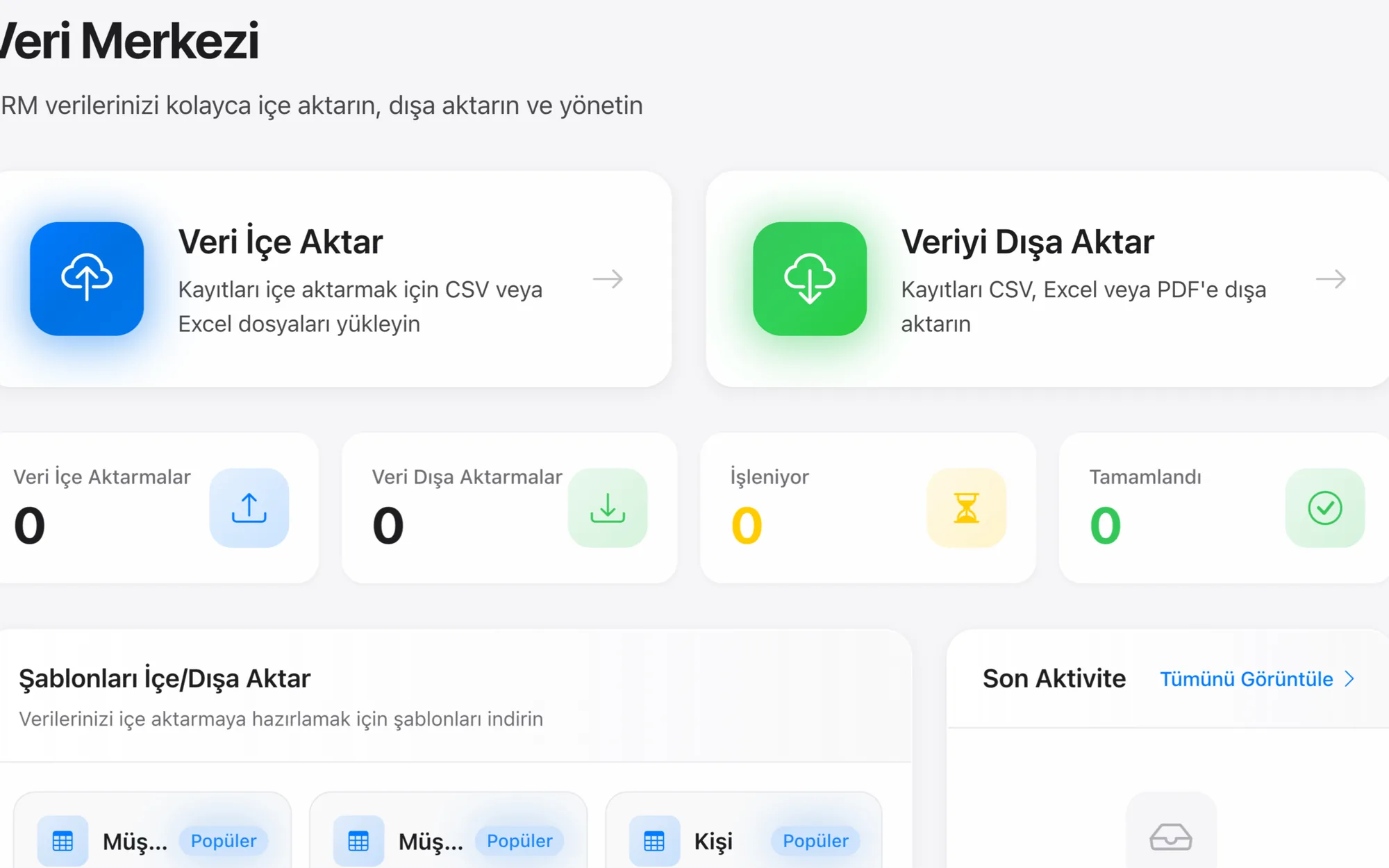
You upload the list that comes back from a trade fair, an event or LinkedIn with Data Hub's four-step wizard: upload, map fields, preview, run. The profile address sits on the contact card as a field, the record's source is tagged, and the follow-up lands on the owner as a task. Importing works in the product today.
The fair is over, the business cards are in a drawer; the LinkedIn connections are on a phone
In B2B the door a lead comes through is a familiar one: a trade fair, an industry event, a webinar and then the connection requests that follow on LinkedIn. The mechanism is this: as long as the list does not enter a system, follow-up stays tied to personal memory. These are the points of loss we have seen in our own projects:
- You come back from the fair with a box of business cards. Some are called in the first week, the rest stay in the drawer — because a record that has not been called appears on no list, follow-up stops of its own accord.
- The LinkedIn connections are in the rep's personal account. When the rep leaves, the network goes with them; the company is left with no record at all.
- The event list circulates in Excel. Two people call the same company, a third is never called; who called whom is on nobody's screen.
- “Where did this lead come from?” goes unanswered. The fair, LinkedIn, an ad — because the source is not held as a field, the budget meeting runs on guesswork.
- The same person sits on three different lists with three different spellings; if the duplicate is not caught at entry it multiplies with every new import, and it only surfaces when someone happens to notice.
- Commercial-message consent has never been discussed. The list goes into a bulk email, and that is where the real risk arises.
Not one item on this list is solved by an “automatic LinkedIn integration”. All of them are solved by the list you already have entering the CRM in a disciplined way.
The honest picture first: we do not have an automatic LinkedIn connection
We do not have an automatic connection to LinkedIn; you upload leads coming from LinkedIn as CSV/Excel with Data Hub's 4-step wizard, and you keep the LinkedIn profile address as a field on the contact card.
We do not say that your Lead Gen forms land in the CRM by themselves. We have no Sales Navigator integration. You cannot manage your LinkedIn messages from the CRM — the product's messaging channel list is closed and contains only email, WhatsApp Business, WhatsApp QR and SMS. We do not offer QR pairing as a product promise: the method is not Meta's official API and it carries the risk of the number being restricted; the route we recommend is the official Cloud API. The details are on the WhatsApp integration page.
But there is something real to tell on this page, because the part that does the actual work runs in the product today: the four-step import wizard — upload, map fields, preview, run. Imports run into more than 75 objects, up to 100,000 rows per job and 25 MB per file; .csv, .xls and .xlsx are accepted. We measured 1,681 company records imported in a single import job, and the records are still there.
Nor do we overstate automatic field mapping. We measured it: 19 of the 19 headers in a Salesforce lead export mapped correctly; in a HubSpot contact export 13 of 17 headers mapped, two mapped incorrectly and the city field did not map at all. Among Turkish headers, the spelling “E-posta” does not map either. This is exactly why the preview step exists: you confirm the mapping on screen, and we do the first setup.
So the answer is this: there is no automation on the LinkedIn side, and there is a working import discipline on the CRM side. We set out the general framework on the integrations page.
Monday 08:40 — you are back from the fair, there is a box of business cards on the desk and dozens of new connections on a phone. It goes in this order:
-
1
The list is consolidated into a single file
The fair list, the connections you exported from LinkedIn and personal notes are gathered into a single CSV or Excel file. This step is human work, and we say that it is.
-
2
It is uploaded with the four-step wizard
Upload, map fields, preview, run. On the preview screen you confirm which column goes to which field; automatic mapping is not flawless, which is why this step cannot be skipped.
-
3
Its source is tagged
Each record is marked as “fair — which fair” or “LinkedIn”. Three months later, which channel brought in business is read from a report; the budget meeting does not run on guesswork.
-
4
Duplicates are caught at entry
If the same person has a record left over from last year's fair, it is seen in the preview and merged. Duplicates are weeded out at entry, rather than becoming a pile to be cleaned up later.
-
5
The LinkedIn profile becomes a field on the contact card
The profile address is kept as a custom field; the rep finds the person in the CRM and goes straight to their profile. The connection now sits in the company's record, not in a personal account.
-
6
Follow-up becomes a task, and WhatsApp or email is written to the record
Every record is linked to an owner and a follow-up task. When the correspondence runs through the company WhatsApp number or the connected email account, it is written to that same record.
There is no automatic connection — what do we do instead?
The four-step import wizard
Upload, map fields, preview, run. Imports into more than 75 objects, 100,000 rows per job, 25 MB per file; .csv, .xls and .xlsx. We do the first import as part of the setup.
Keeping the LinkedIn profile address as a field
An administrator adds fields such as the profile address, the connection date or which group you met through, without writing code. Adding custom fields is standard in the product: today there are 277 custom fields defined across 19 tenants.
Source attribution and channel comparison
Which fair, which event or LinkedIn a record came from is tagged in the source field. Which channel actually brings in business is not guessed at, it is read from a report.
Weeding out duplicates at entry
Earlier records for the same person are seen at the preview step and merged. Which field will be the match key — email, phone or company name — is decided during setup.
Tying follow-up to a task and an owner
Every uploaded record is linked to an owner and a follow-up task; the ones that have not been called sit in a view. Instead of a pile of business cards in a drawer, you get a list you can track.
Business card scanner
The business card scanner that turns a photo into a lead exists in the product and can be used. Let us write this down too: 74 of the 74 scans measured were made in our own installation; we do not build a claim on customer usage.
What exists and what does not on the LinkedIn side
| What is being asked | In Rapitek CRM | Where it is done |
|---|---|---|
| Lead Gen forms landing in the CRM automatically | No. There is no built-in, automatic connection to LinkedIn in the product | Export on the LinkedIn side + import with Data Hub |
| Sales Navigator integration | No. There is no connector written for Sales Navigator in the product | On the LinkedIn side; moving it into the CRM by export and import |
| LinkedIn messages appearing in the CRM inbox | No. The messaging channel list is closed: email, WhatsApp Business, WhatsApp QR and SMS. QR is not the official API, and we do not offer it as a product promise | In the LinkedIn app |
| Generating leads automatically by scraping profiles | No, and we do not do it. Scraping is risky in terms of platform rules and personal data | Nowhere — this is not a shortcoming, it is a choice |
| Uploading the lead list to the CRM as CSV/Excel | Yes. Four-step wizard: upload, map fields, preview, run. 75+ objects, 100,000 rows per job | Rapitek CRM — the first import is within the setup scope |
| Keeping the LinkedIn profile address on the contact card | Yes. Added as a custom field without writing code | Rapitek CRM |
| Tagging a record's source, and channel reporting | Yes. The source field and reporting are standard in the product | Rapitek CRM |
| Sending an automatic email sequence to the uploaded list | We do not promise it. The sales sequence screens are in place in the product, but today we cannot point to a reference for it | Discussed during setup; the start we recommend is task-based follow-up |
| Sending commercial messages to the collected list | Conditional. İYS consent status is kept on record in the CRM and synchronised both ways; sending runs together with that record | Rapitek CRM + İYS; the legal assessment rests with you and your adviser |
What we measured on the import side — the good and the bad
How is the list-upload routine set up?
-
1
Discovery
We work out which doors leads come through — fair, event, webinar, LinkedIn, referral — and which file is kept at each door today. We recommend that your sales manager is in this meeting.
-
2
Template and match key
A single upload template is settled on, and it is decided which field will catch duplicates: email, phone or company name. If the template is not fixed, a different file format arrives after every fair.
-
3
Fields, source list and task rule
Custom fields such as the LinkedIn profile, the source options and who the task falls to after an upload are set up. We do the first import together with a sample file, and we read the preview together with your team.
-
4
Training and handover
Your team does the subsequent uploads itself; the wizard is four steps and requires no code. We do not commit to a duration before discovery; after the discovery meeting we give you a date, not a range.
Our limits: what we do not promise on this page
Precisely because there is something real to tell on this page, the boundary needs to be drawn even more clearly.
- We do not say “your Lead Gen forms land in the CRM automatically”. There is no built-in automatic connection to LinkedIn in the product.
- We have no Sales Navigator integration.
- We do not say “manage your LinkedIn messages from the CRM”. The product's messaging channel list is closed and contains only email, WhatsApp Business, WhatsApp QR and SMS; LinkedIn is not on that list.
- We do not offer pairing the phone by QR code as a product promise. The same inbox can be connected this way too, but the method is not Meta's official API and it carries the risk of the number being restricted by Meta. The route we recommend is the official Cloud API; if you still prefer this route, we share the risk in writing and we take the decision together. The details are on the WhatsApp integration page.
- We do not scrape data. We have no tool that automatically collects data from profiles, and we do not want one. Scraping is risky both under the platform's own rules and in terms of personal data, and we do not pass that risk on to our customer.
- We do not promise an automatic email sequence to the uploaded list. The sales sequence screens are in place in the product, but in eight of the eight installations we measured this table is empty. The start we recommend is task-based follow-up.
- We do not build a customer-usage claim for the business card scanner. The feature exists in the product; 74 of the 74 scans measured were made in our own installation.
Consent and commercial messages: having taken someone's business card at a fair does not mean you have permission to send that person commercial electronic messages. The İYS connection in the product is real and two-way — consent is queried and consents given are reported to İYS — and sending runs together with that record. Preparing your privacy notices and consent texts is your job and your legal adviser's; we build the mechanism. We wrote out the framework on the KVKK-compliant CRM page.
Data location: your data is held in the European Union — the database in Helsinki (Finland), the files you upload in Frankfurt, the backups in Falkenstein (Germany). We have no component in Türkiye, and we have no region selection feature. This is a transfer abroad within the scope of KVKK art. 9; we establish your legal basis together during the contract process. The details are on the security page and in the KVKK privacy notice.
Certification: we do not have an ISO 27001 or SOC 2 certificate, and we will not claim one until we do.
The canonical limits that apply to every integration — stock synchronisation, the order–invoice–collection chain and production automation — sit in one place: the three things we do not promise.
Plan prices are in the open; scope comes out at discovery
The scope of the list-upload and follow-up routine is worked out in the discovery meeting and shared in writing. Plan prices and separately priced items we publish on a single page, with the figures.
Three plans, a scope table and separately priced items on a single page.
Frequently asked questions about LinkedIn and Rapitek CRM
Does Rapitek CRM have a LinkedIn integration?
Do our LinkedIn Lead Gen forms land in the CRM automatically?
Does it work with Sales Navigator?
Can we manage our LinkedIn messages from the CRM?
How do we get the business cards from a fair into the CRM?
Do the fields map automatically when we upload?
The same person is on several lists; will duplicate records be created?
Can you collect data from LinkedIn profiles?
Can we send bulk email to the list we uploaded?
If our rep leaves, do the LinkedIn connections stay with the company?
Can we see how many leads came from which channel?
Can we do the import ourselves?
How long does setup take?
Where is our data held?
Where does support come from?
Can we see this before we buy?
Let's set up your list routine before the next fair
In a 30-minute demo, let us walk through the import wizard step by step with your own sample list; let us settle the template, the match key and the follow-up tasks together.
The first import is done as part of the setup; your team does the subsequent uploads itself.
